Connecting HubRise
Follow these steps to link your delivery apps and start receiving orders in Menus.kitchen.
What is HubRise?
HubRise is a middleware platform that sits between Menus.kitchen and delivery apps like Uber Eats, Deliveroo, Just Eat, and Glovo. Once connected, your menu syncs to all your delivery platforms from one place, and every order flows back into your Menus.kitchen dashboard automatically.
Setup steps
Create a HubRise account
Go to manager.hubrise.com/signup and create an account. You will be asked for your business name and location — use your restaurant's details. While creating the account, make sure to choose the correct currency because you will not be able to change it later for this restaurant.
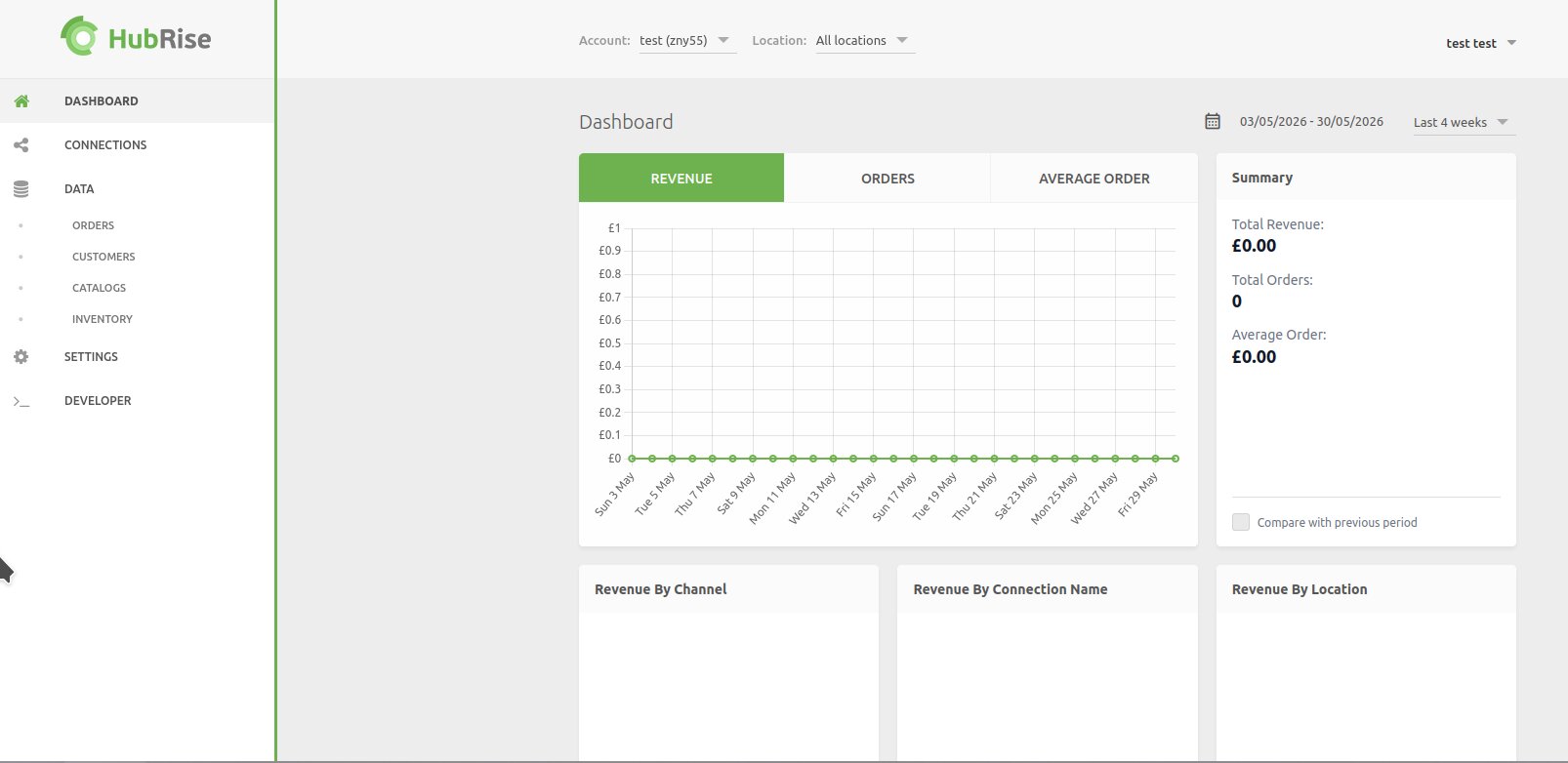
Create HubRise account →After you have signed up and added your location details and created your location within the app you will see a dashboard like the one below.
Link HubRise to Menus.kitchen
Go back to your Menus.kitchen dashboard, open Integrations for your restaurant, and click Connect HubRise. You will be redirected to HubRise to authorise the connection — log in and approve it. You will be sent back to Menus.kitchen automatically.
Connect your delivery apps in HubRise
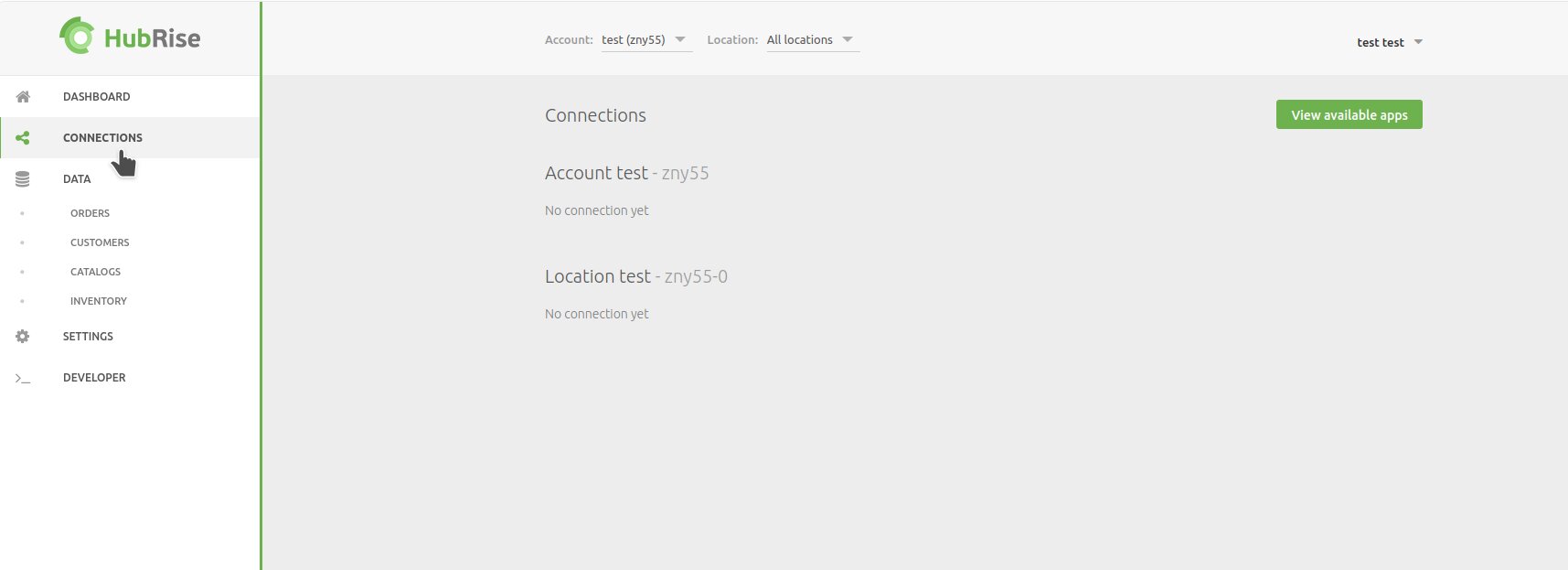
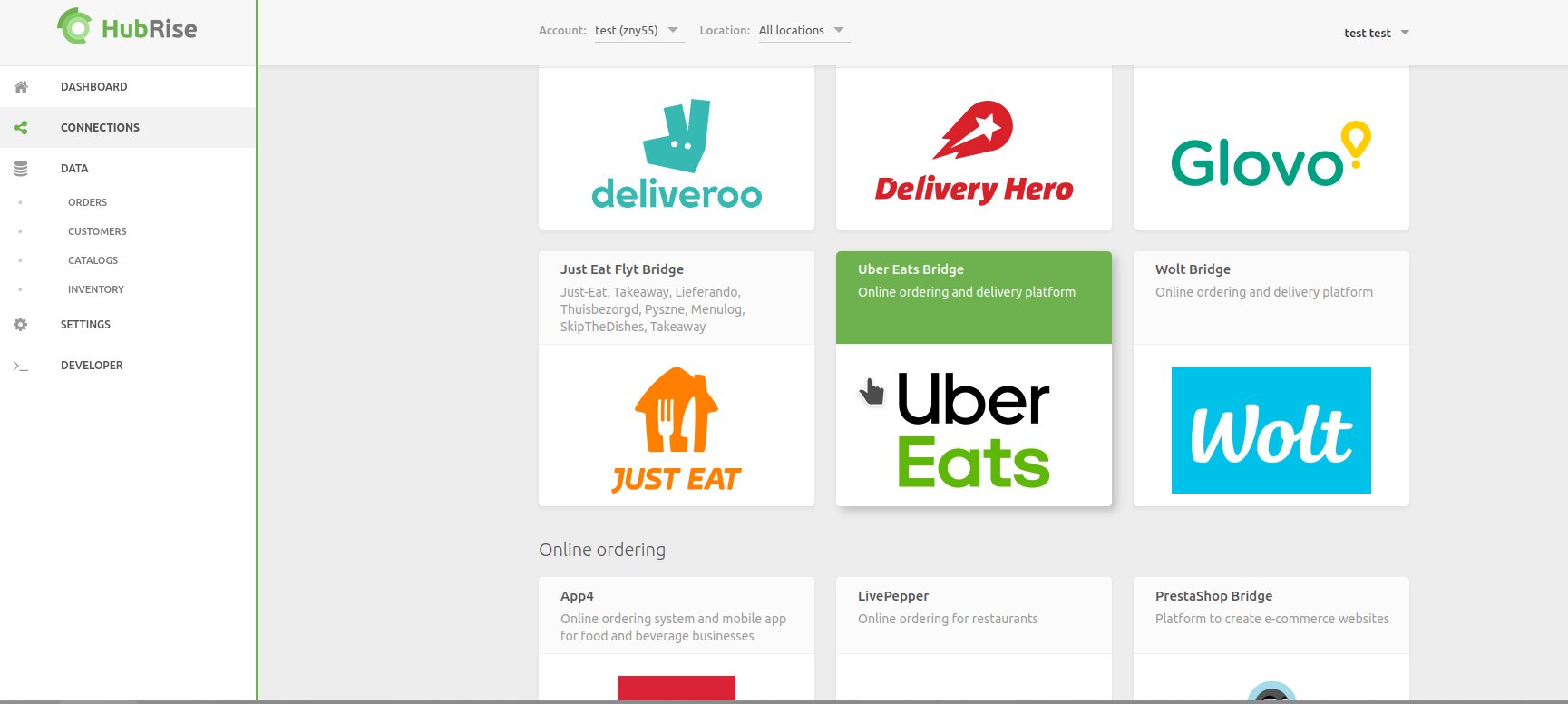
Now that you have a HubRise account and it's connected to Menus.kitchen, you need to connect your delivery platforms to HubRise. Go back to the HubRise dashboard, click on Connections in the sidebar, find your delivery platforms (Uber Eats, Deliveroo, Just Eat, Glovo, etc.) and connect them by following the instructions for each platform.
Configure your apps
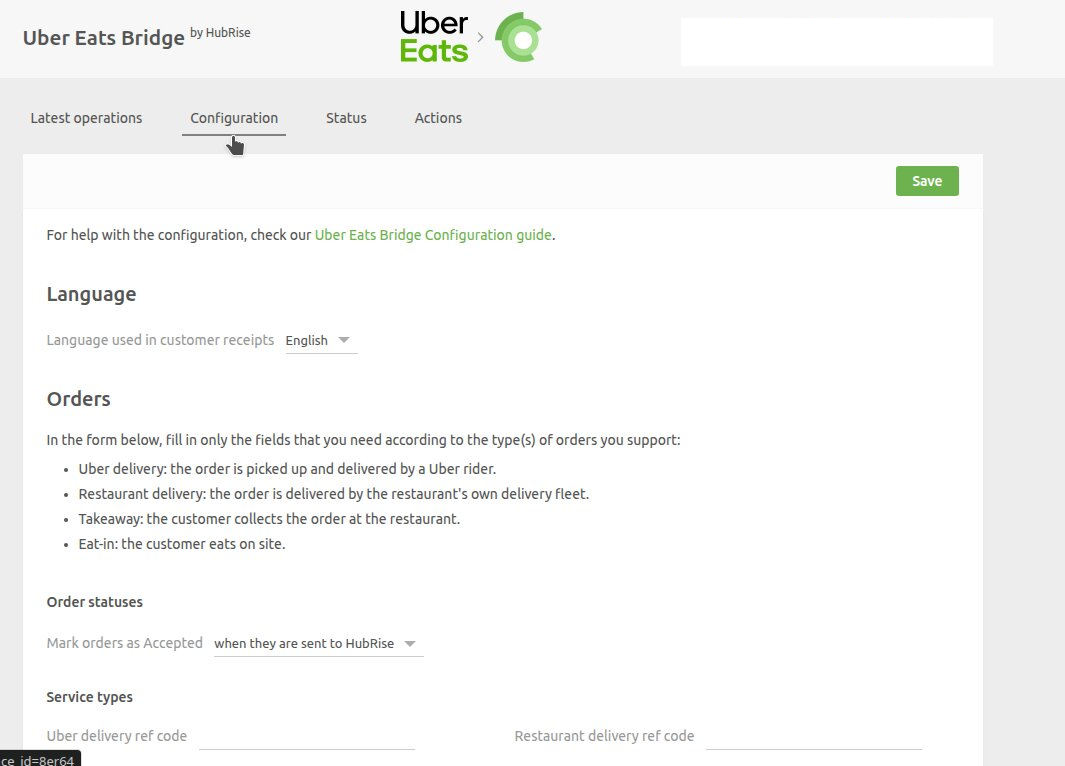
In the HubRise dashboard, click on Connections in the sidebar and find the connection you added and click "Open". Here you can configure how the menu will sync. Make sure that "Enable automatic catalog push" is checked and turned on. This will allow you to push your menu directly from Menus.kitchen to your delivery platforms without having to log in to HubRise every time you make a change.
Success: you can now Push or Pull your menu to and from your delivery apps.
If you already have a menu in a delivery platform you can pull it to HubRise on the configuration page, and then pull it to Menus.kitchen with the "Pull Menu from HubRise" button. This will allow you to import your menu without having to start from scratch. Note: this will delete your previous menus as well as reset menu times, and import without images. We only recommend doing it for an initial import of items. Pushing will allow you to push all items to HubRise, and then automatically to all your delivery platforms if you have checked "Enable automatic catalog push".